Google Play screenshot and feature graphic requirements (2026)
Updated October 2026, from Google’s Play Console Help.
- To publish you need at least 2 screenshots and a 1024 × 500 feature graphic, as JPEG or 24-bit PNG without transparency.
- For large-format placements you need at least 4 phone screenshots at 9:16 (1080 × 1920 or more) or 16:9 (1920 × 1080 or more). Games need 3.
- Google asks for real app screens with short taglines, and no rankings, prices, “Download now”, device frames or notifications in the status bar.
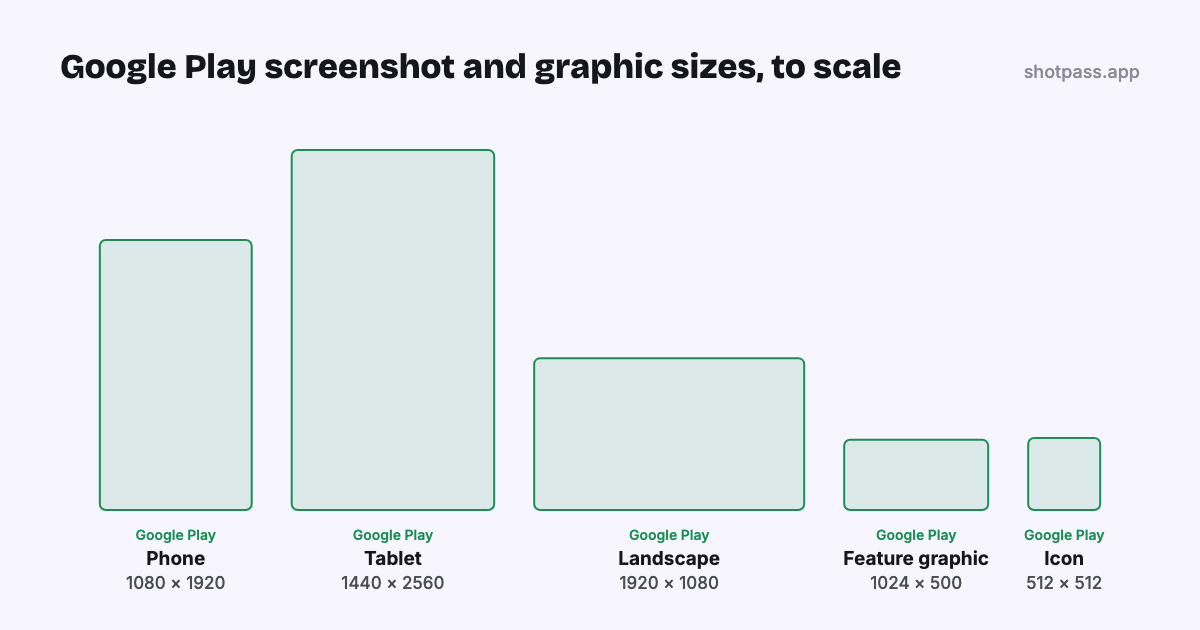
Phone screenshots
| Rule | Requirement |
|---|---|
| Count | At least 2 to publish (across all device types), up to 8 per device type |
| Format | JPEG or 24-bit PNG, no alpha channel |
| Size | Each side 320 to 3840 pixels, and the long side no more than twice the short side |
| Large format | At least 4 screenshots at 9:16 portrait (1080 × 1920 or more) or 16:9 landscape (1920 × 1080 or more) |
| Large format, games | At least 3 screenshots of the game at 9:16 or 16:9, at the same minimum sizes |
1080 × 1920 meets every rule above. Google lists the large-format rule as “highly recommended” rather than required, but without it your listing can’t appear in Play’s large-format placements. A taller 1080 × 2160 (18:9) screenshot is fine for publishing, but it isn’t the 9:16 Google asks for there.
The first three screenshots matter most: Google suggests showing the app’s interface in all three, before anything else.
Tablets and Chromebooks
Large screens have their own screenshots: at least 4, each side 1080 to 7680 pixels, in 16:9 landscape or 9:16 portrait (1440 × 2560 is a sharp portrait choice). Google asks you to leave out text that isn’t part of the app on these, because Play homepages crop large-screen screenshots on some screens. Plain app screens, or a headline kept well inside the image, work best here.
Wear OS, TV, cars and XR
| Device | Requirement |
|---|---|
| Wear OS apps | At least 1 screenshot, 1:1 and at least 384 × 384, showing only the app: no device frame, extra graphics, transparency or masking |
| Wear OS watch faces | At least 1 accurate screenshot, the same 1:1 rules; show more than one look if the face can be customized |
| Android TV | At least 1 TV screenshot to publish, plus a 1280 × 720 TV banner (JPEG or 24-bit PNG, no alpha) |
| Android Automotive OS | Generic system UI, not a car maker’s; at least 2 portrait (800 × 1280) and 2 landscape (1024 × 768) screenshots |
| Android XR | 4 to 8 screenshots, 8:5, 3840 × 2400 recommended (1920 × 1200 minimum), up to 8 MB each |
Automotive screenshots are required for car apps outside the “parked” categories and recommended for the rest if the car version differs from the phone app. TV screenshots only show on Android TV.
What Google asks screenshots to show
Google lists these as recommendations, and they describe what a strong listing looks like:
- Real, captured screens of your app’s core features, with the interface in the first three.
- Taglines only where they help, covering no more than 20% of the image. Avoid small text and text on busy backgrounds.
- No rankings, awards, prices, promotions or calls to action such as “Download now”, and nothing time-sensitive.
- No people tapping the device, unless your app is used away from the screen.
- No device imagery, store badges, or other companies’ trademarks without permission.
- A clean status bar: no notifications or carrier name, and full battery, Wi-Fi and signal icons.
- Taglines and overlays localized for each language (in-game text can stay as it is).
- Nothing blurry, stretched, over-compressed or rotated, and alt text of up to 140 characters for each screenshot.
The advice against device imagery is the one most screenshot templates go against. To follow it, show the screen without a phone around it: in ShotPass, pick No frame as the device and the screenshot sits on your background with rounded corners.
A clean status bar is easiest to get when you capture. On Android, System UI demo mode fixes the clock and fills the battery and signal icons and hides notifications (see the demo mode link under Sources). ShotPass shows your screenshots exactly as you upload them, so what you capture is what people see.
Feature graphic
- 1024 × 500 pixels, JPEG or 24-bit PNG without transparency. You can’t publish without one, and it’s the cover image of your promo video.
- Keep the important parts in the middle, away from the edges Play may crop, and let the background fill the edges.
- Avoid fine detail and backgrounds of pure white, black or dark gray.
- Don’t repeat your app icon’s branding, and leave out device imagery, store badges and anything time-sensitive.
- Localize any text on it.
App icon and promo video
- App icon: 512 × 512 pixels, 32-bit PNG (transparency allowed), up to 1024 KB, with no badges or text suggesting a ranking, price or Play category.
- Promo video: one YouTube link (not a playlist or channel, and without a start time), public or unlisted, with ads off, not age-restricted and embeddable. Only the first 30 seconds autoplay, so show the app in the first 10. The app preview and promo video guide covers making one.
Screenshots in other languages
In Play Console, open your store listing and choose Manage translations to add languages. Each language can have its own screenshots and feature graphic; languages without their own show the default language’s graphics. The guide to localizing screenshots covers which languages to pick and how to make them.
Making them
ShotPass exports Google Play phone screenshots at 1080 × 1920, tablet screenshots at 1440 × 2560 and the 1024 × 500 feature graphic, as PNGs without an alpha channel, for every language in your project. The device can be a real phone frame, a 3D one, or no frame at all, and the feature graphic has its own designer. Export → fastlane puts them where fastlane supply uploads from (see the fastlane guide). App Store sizes are in the screenshot sizes guide. Designing is free; a pass for $5 removes the watermark for a week.